Example of Entity Framework
To run your SQL code, follow these steps:
- Copy the ready-made SQL code you have.
- Open SQL Server Management Studio (SSMS) or your SQL tool.
- Connect to your database server.
- Click on New Query.
- Paste the copied SQL code into the query window.
- Click Execute (or press F5) to run the query.
Simple:
Copy SQL → Open SSMS → New Query → Paste → Execute.
-- Create Database
CREATE DATABASE MVC_StudentDB
GO

-- Use Database
USE MVC_StudentDB
GO

-- Create Student Table
CREATE TABLE Student
(
    StudentId INT PRIMARY KEY IDENTITY(1,1),
    Name NVARCHAR(50) NOT NULL,
    Age INT NOT NULL,
    Gender NVARCHAR(10) NOT NULL,
    Course NVARCHAR(50) NOT NULL,
    Marks INT NOT NULL
)
GO

-- Insert Default Data
INSERT INTO Student
(Name, Age, Gender, Course, Marks)
VALUES
('Ali', 20, 'Male', 'BCA', 85),
('Sara', 22, 'Female', 'BBA', 90),
('Ahmed', 21, 'Male', 'BSc IT', 78),
('Fatima', 23, 'Female', 'MBA', 88),
('Khushbu', 20, 'Female', 'BSC', 99)
GO
Steps After Creating a New ASP.NET MVC Project
After opening Visual Studio 2022, click Create a new project.
- Choose ASP.NET Web App (Model-View-Controller) and language C#.
- Click Next, Visual Studio will configure the project.
- Enter the Project Name and Project Location.
- Select the .NET Framework Version you need.
- Click Create to create the project.
Select Empty Template
- Tick the MVC option to add Model, View, and Controller folders along with core references.
- Click Create again to finalize the project.
Project Created Successfully:
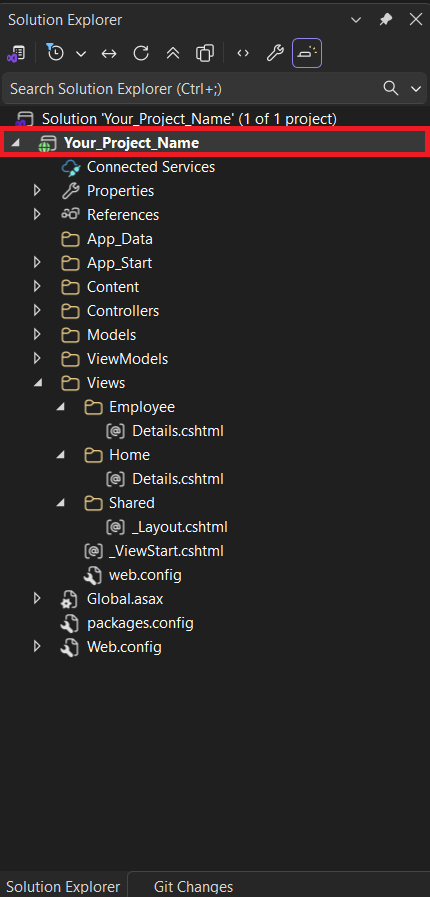
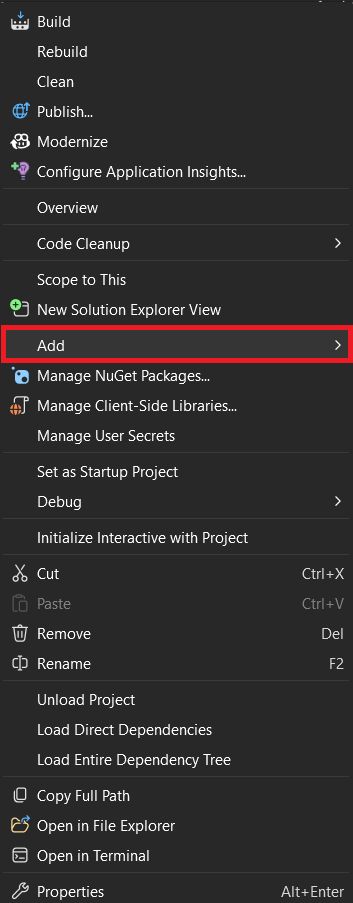
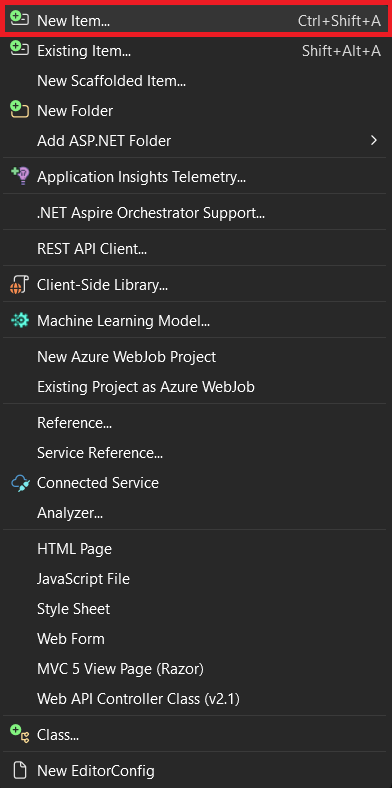
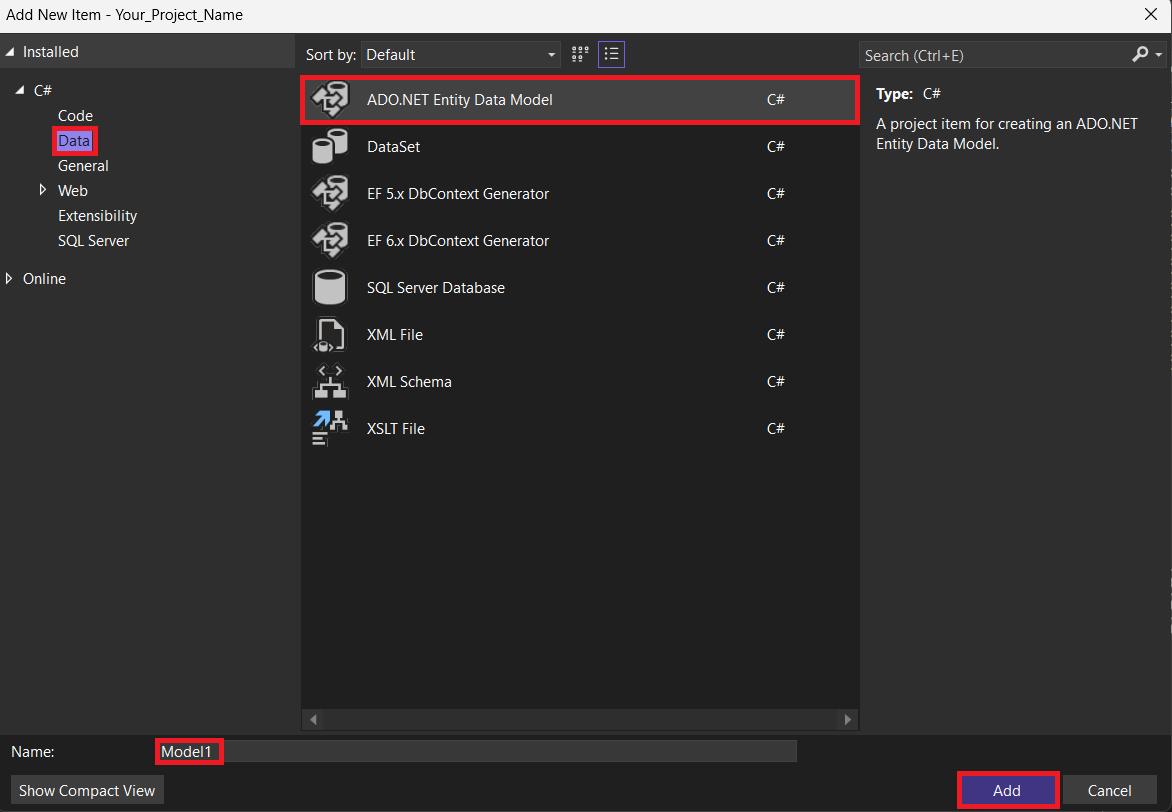
Now, to add the database model: Right-click on your Project Name → Add → New Item → Select Data → ADO.NET Entity Data Model → Click Add.
Right-click on your Project Name
→ Click Add
→ Click New Item...
- Click on Data in the left panel.
- Select ADO.NET Entity Data Model.
- Click Add.
- EF Designer from database (to generate model from existing database)
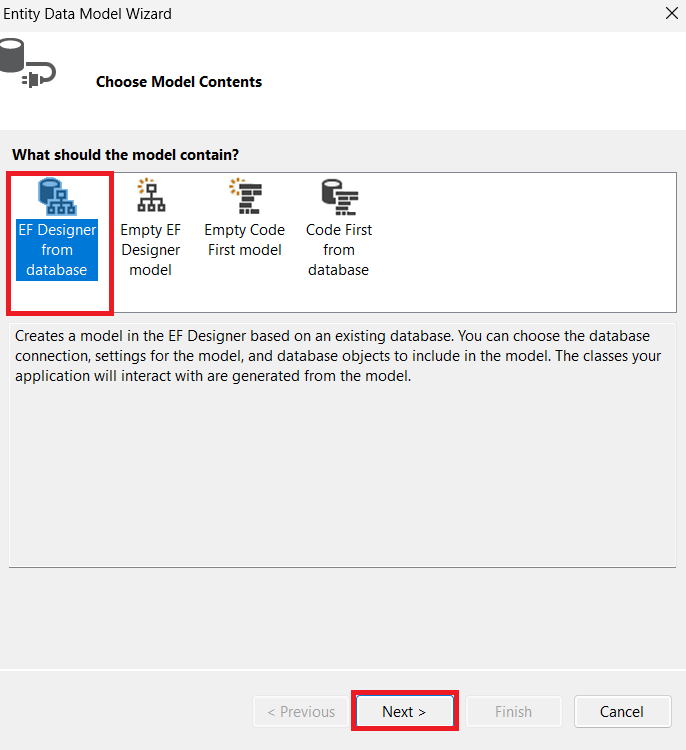
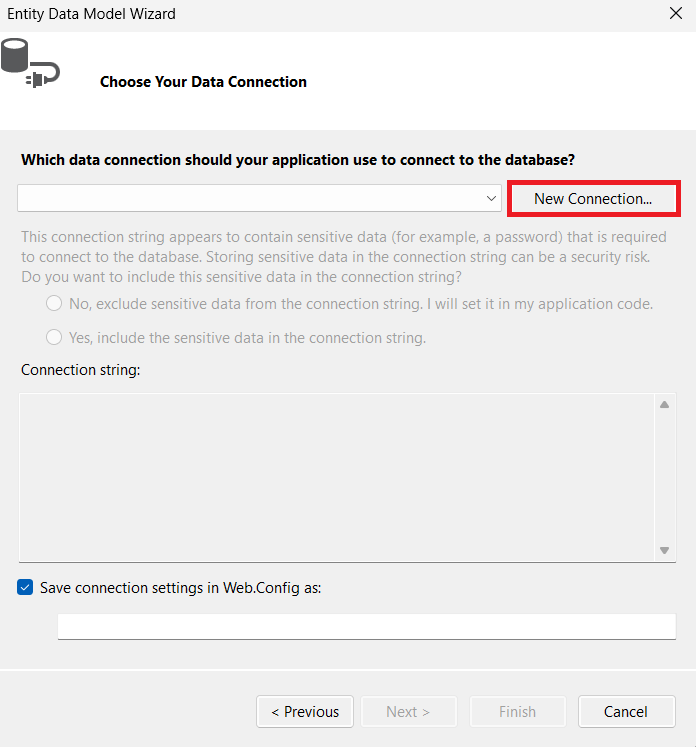
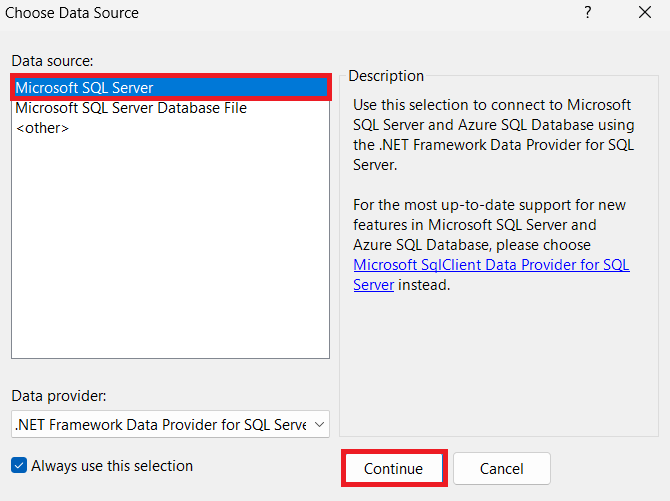
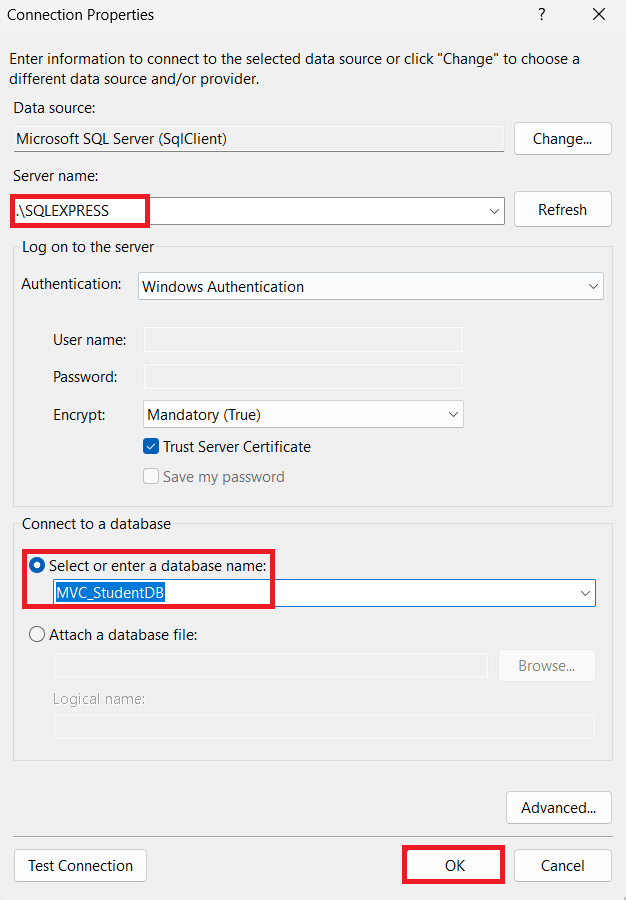
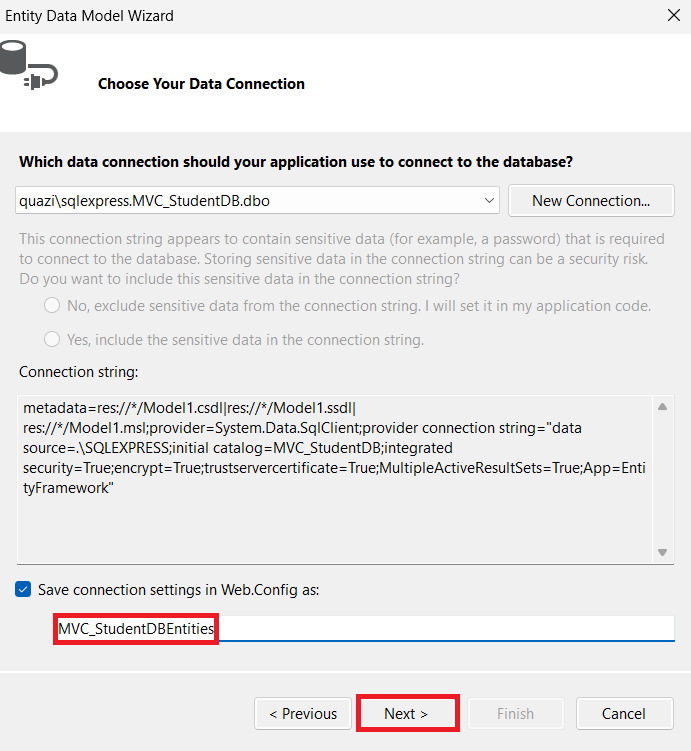
In the Entity Data Model Wizard, after creating the database connection:
- By default, the model will have a name like MVC_StudentDBEntities
- You can change the name to something else if you like.
- Once done, click the Next button to proceed to the next step of the wizard.
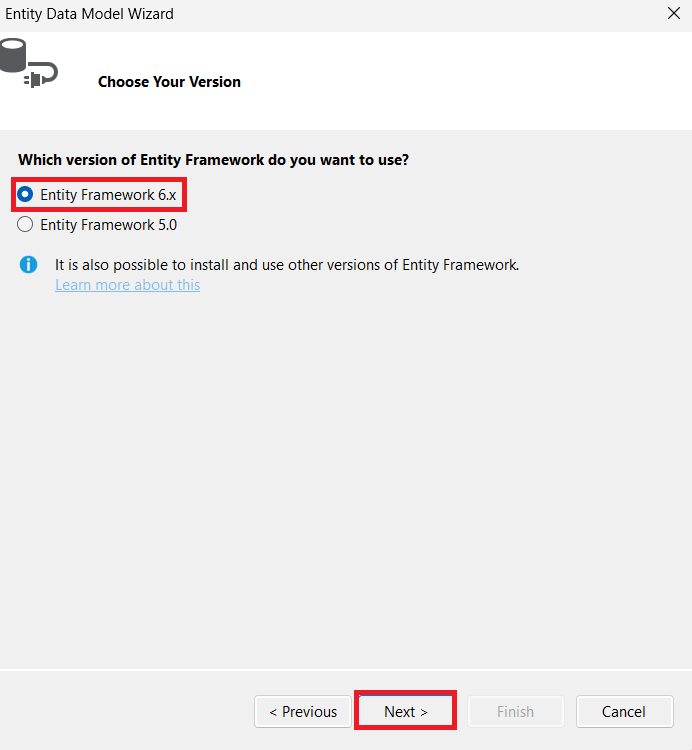
In the Entity Data Model Wizard, when selecting the Entity Framework version:
- You will see radio buttons for different EF versions.
- Click the radio button next to Entity Framework 6.x to select it.
- Then click the Next button to continue.
This lets the wizard know which version of EF to use for generating your model.
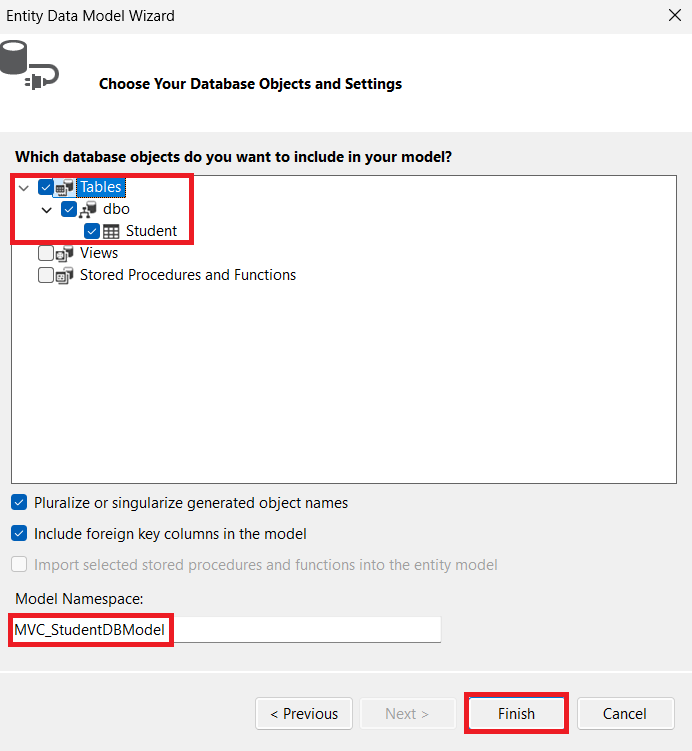
In the Entity Data Model Wizard, after selecting the Entity Framework version:
- You will see a list of database objects (tables, views, stored procedures).
- Select the tables you want to include in your model.
- In the Model Namespace field, enter: MVC_StudentDBModel
- Click the Finish button to generate the model classes.
Once finished, Visual Studio will create the Entity Framework model with your selected tables inside the project.
Simple:
Select tables → Enter Model Namespace "MVC_StudentDBModel" → Click Finish → Model created.
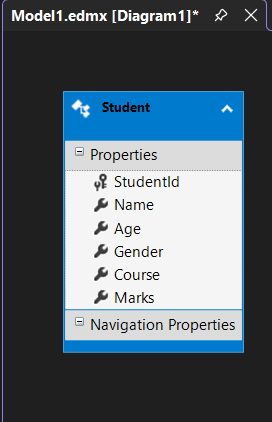
After completing the Entity Data Model wizard and clicking Finish:
Your Entity Framework model has been created successfully inside the project. For example, the Student table now appears in the Model1.edmx diagram.
- All columns from the Student table are included: StudentId, Name, Age, Gender, Course, Marks.
- The StudentId is automatically set as the primary key.
- Navigation properties are ready if you have related tables.
This means your database table is now connected to your project through Entity Framework. You can now use this model in your Controllers to fetch or update data.
Simple:
After Finish → Student table appears in Model1.edmx → Columns & Keys are ready → Can use in Controller.
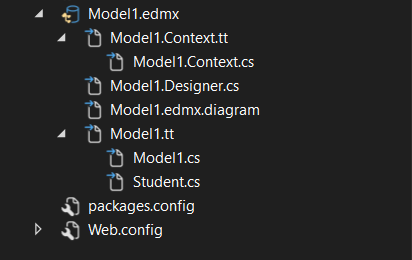
Model1.Context.cs
//------------------------------------------------------------------------------
// <auto-generated>
//     This code was generated from a template.
//
//     Manual changes to this file may cause unexpected behavior in your application.
//     Manual changes to this file will be overwritten if the code is regenerated.
// </auto-generated>
//------------------------------------------------------------------------------

namespace Your_Project_Name
{
    using System;
    using System.Data.Entity;
    using System.Data.Entity.Infrastructure;

    public partial class MVC_StudentDBEntities : DbContext
    {
        public MVC_StudentDBEntities()
            : base("name=MVC_StudentDBEntities")
        {
        }

        protected override void OnModelCreating(DbModelBuilder modelBuilder)
        {
            throw new UnintentionalCodeFirstException();
        }

        public virtual DbSet<Student> Students { get; set; }
    }
}
Student.cs
//------------------------------------------------------------------------------
// <auto-generated>
//     This code was generated from a template.
//
//     Manual changes to this file may cause unexpected behavior in your application.
//     Manual changes to this file will be overwritten if the code is regenerated.
// </auto-generated>
//------------------------------------------------------------------------------

namespace Your_Project_Name
{
    using System;
    using System.Collections.Generic;

    public partial class Student
    {
        public int StudentId { get; set; }
        public string Name { get; set; }
        public int Age { get; set; }
        public string Gender { get; set; }
        public string Course { get; set; }
        public int Marks { get; set; }
    }
}
RouteConfig.cs
using System;
using System.Collections.Generic;
using System.Linq;
using System.Web;
using System.Web.Mvc;
using System.Web.Routing;

namespace Your_Project_Name
{
    public class RouteConfig
    {
        public static void RegisterRoutes(RouteCollection routes)
        {
            routes.IgnoreRoute("{resource}.axd/{*pathInfo}");

            routes.MapRoute(
                name: "Default",
                url: "{controller}/{action}/{id}",
                defaults: new
                {
                    controller = "Student",action = "Index",id = UrlParameter.Optional
                }
            );
        }
    }
}
Now, create a new controller for the Student.
Go to the Controllers folder 📁, right-click on it, and select Add → Controller.
Choose MVC 5 Controller – Empty and click Add.
Name the controller StudentController and click Add.
After creating the controller, open StudentController.cs and update it with the code provided.
Simple:
Controllers 📁 → Right Click → Add Controller →
Name it StudentController →
Open file → Update the code.
using System;
using System.Collections.Generic;
using System.Linq;
using System.Web;
using System.Web.Mvc;
using Your_Project_Name.Models;

namespace Your_Project_Name.Controllers
{
    public class StudentController : Controller
    {
        // GET: Student
        public ActionResult Index()
        {
            MVC_StudentDBEntities dbContext = new MVC_StudentDBEntities();
            List<Student> StuList = dbContext.Students.ToList();
            return View(StuList);
        }
    }
}
After creating the StudentController, open the controller file and right-click on the Index action method. Select Add View.
In the Add View window, configure the following options:
- View Name: Index
- Template: List
- Model Class: Student (Your_Project_Name)
- Data Context Class: MVC_StudentDBEntities (Your_Project_Name)
Click the Add button. Visual Studio will automatically generate a strongly typed MVC 5 View that displays the list of students.
If the view is not generated correctly, you may copy the provided code and update the Index.cshtml file manually.
Summary:
StudentController → Right Click Index → Add View →
Select List Template → Choose Student Model →
Select MVC_StudentDBEntities → Click Add.
Index.cshtml
@model IEnumerable<Your_Project_Name.Student>

@{
    ViewBag.Title = "Index";
}

<h2>Index</h2>

<p>
    @Html.ActionLink("Create New", "Create")
</p>

<table class="table">
    <tr>
        <th>@Html.DisplayNameFor(model => model.Name)</th>
        <th>@Html.DisplayNameFor(model => model.Age)</th>
        <th>@Html.DisplayNameFor(model => model.Gender)</th>
        <th>@Html.DisplayNameFor(model => model.Course)</th>
        <th>@Html.DisplayNameFor(model => model.Marks)</th>
        <th></th>
    </tr>

@foreach (var item in Model) {
    <tr>
        <td>@Html.DisplayFor(modelItem => item.Name)</td>
        <td>@Html.DisplayFor(modelItem => item.Age)</td>
        <td>@Html.DisplayFor(modelItem => item.Gender)</td>
        <td>@Html.DisplayFor(modelItem => item.Course)</td>
        <td>@Html.DisplayFor(modelItem => item.Marks)</td>
        <td>
            @Html.ActionLink("Edit", "Edit", new { id=item.StudentId }) |
            @Html.ActionLink("Details", "Details", new { id=item.StudentId }) |
            @Html.ActionLink("Delete", "Delete", new { id=item.StudentId })
        </td>
    </tr>
}

</table>
Output
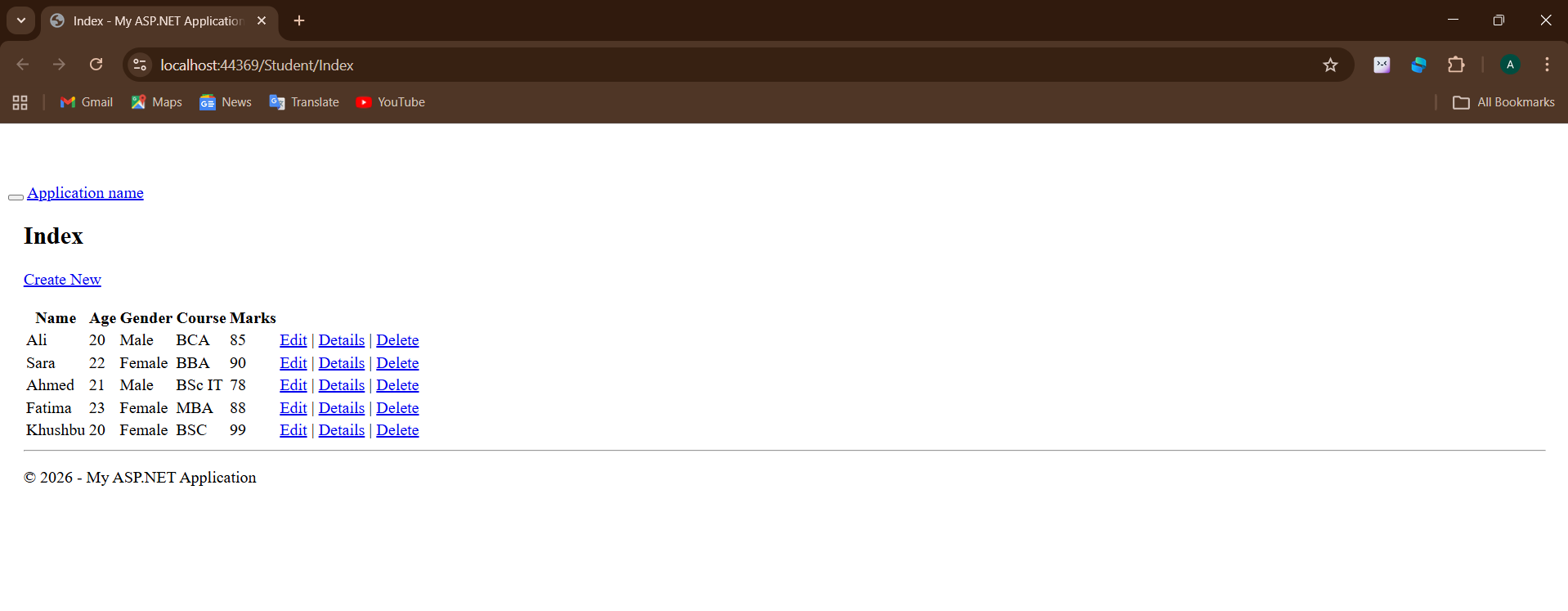
Application URL
https://localhost:44369/Student/Index