DropDownList Helper in ASP.NET MVC
What is DropDownList Helper?
DropDownList Helper is used to create a select menu (dropdown).
It generates this HTML:
1️⃣ Basic Example
@Html.DropDownList("City", new SelectList(new[] { "Mumbai", "Delhi","Pune" } ) )
👉 Simple dropdown with 3 cities.
2️⃣ Real Life Example
Registration Form – User selects Country
@Html.DropDownList( "Country", new SelectList( new[] { "India", "USA", "UK" } ) )
string country = Request["Country"];✔ Selected value goes to controller.
3️⃣ With Default Selected Value
@Html.DropDownList( "City", new SelectList( new[] { "Mumbai", "Delhi", "Pune" }, "Delhi" ) )
4️⃣ With CSS (Little Advanced)
@Html.DropDownList("City",new SelectList(new[] { "Mumbai", "Delhi", "Pune" } ), "Select City", new { @class = "form-control" } )
5️⃣ Strongly Typed (Best Practice)
@Html.DropDownListFor( m => m.City, new SelectList( Model.CityList ) )
Simple Summary
✔ Creates dropdown menu ✔ Sends selected value to controller ✔ Can set default value ✔ Can add CSS ✔ DropDownListFor is better for real appsFirst Example – Dropdown List
In our first example, we will start by creating a class inside the Models folder.
Go to the Models folder 📁.
Right-click on Models → Select Add → Class.
Name the class Department.cs and click Add.
using System;
using System.Collections.Generic;
using System.Linq;
using System.Web;

namespace Your_Project_Name.Models
{
    public class Department
    {
        public int Id { get; set; }

        public string Name { get; set; }
    }
}
Create Employee Controller
Go to the Controllers folder 📁, right-click on it, and select Add → Controller.
Choose MVC 5 Controller – Empty and click Add.
Name the controller Employee and click Add.
After creating the controller, open Employee.cs .
using System;
using System.Collections.Generic;
using System.Linq;
using System.Web;
using System.Web.Mvc;
using Your_Project_Name.Models;

namespace Your_Project_Name.Controllers
{
    public class EmployeeController : Controller
    {
        public ActionResult Index()
        {
            List<Department> ListDepartments = new List<Department>()
            {
                new Department() { Id = 1, Name = "IT" },
                new Department() { Id = 2, Name = "HR" },
                new Department() { Id = 3, Name = "Payroll" },
            };

            ViewBag.Departments = new SelectList(  ListDepartments, "Id", "Name");
            return View();
        }
    }
}
Create Index View
Now open EmployeeController.
Right-click on the Index action method → Select Add View.
Choose MVC 5 View.
Configure the Add View options:
- View Name: Index
- Template: Empty (without model)
- Model Class:
@{
    ViewBag.Title = "Index";
}

<h2>Index</h2>

@Html.DropDownList("Departments", ViewBag.Departments as IEnumerable<SelectListItem>, "Select Department", new { @class = "form - control" } )
Update RouteConfig.cs
Open the RouteConfig.cs file.
By default, the route is set to:
defaults: new { controller = "Home", action = "Index", id = UrlParameter.Optional }
I have changed "Home" to "Employee".
Now the updated code will be:
defaults: new { controller = "Employee", action = "Index", id = UrlParameter.Optional }
Important:
When you run the project, it will directly open the Employee Controller instead of the Home Controller.
using System;
using System.Collections.Generic;
using System.Linq;
using System.Web;
using System.Web.Mvc;
using System.Web.Routing;

namespace Your_Project_Name
{
    public class RouteConfig
    {
        public static void RegisterRoutes(RouteCollection routes)
        {
            routes.IgnoreRoute("{resource}.axd/{*pathInfo}");

            routes.MapRoute(
                name: "Default",
                url: "{controller}/{action}/{id}",
                defaults: new
                {
                    controller = "Employee",action = "Index",id = UrlParameter.Optional
                }
            );
        }
    }
}
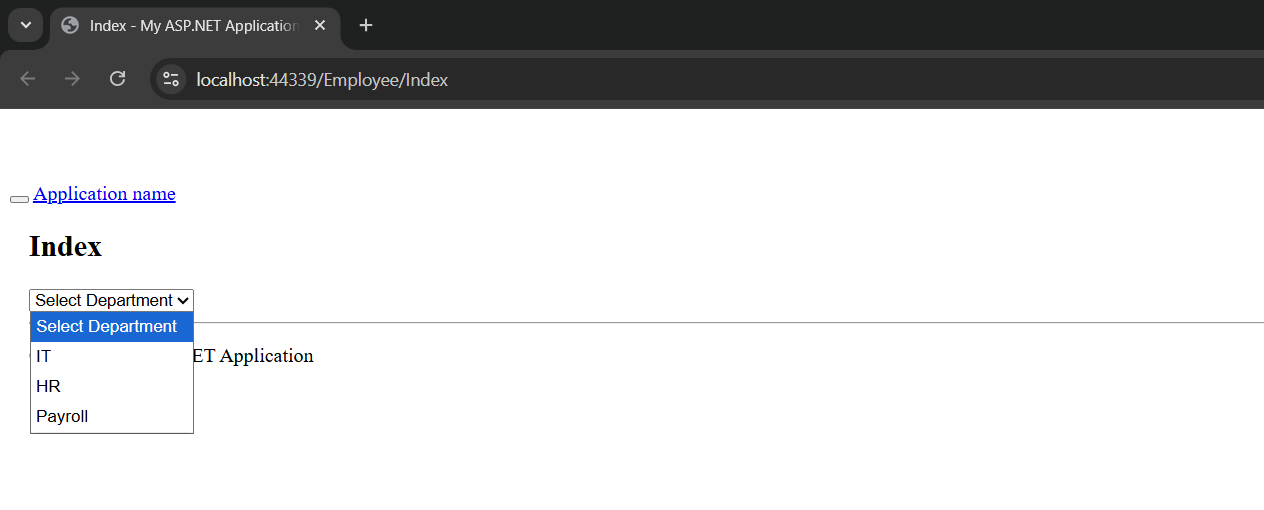
Output
Application URL
https://localhost:44376/Employee/Index
Second Example – Dropdown List (Update Department.cs)
In this example, we are NOT creating a new class.
We will use the existing Department.cs file and update it.
Go to the Models folder 📁 and open Department.cs.
Important:
Do not create a new file. Just add the following code inside the existing Department.cs.
public enum Gender
{
    Male,
    Female
}
Save the file after updating.
This is our Second Example where we update the existing model to use it in a Dropdown List.
using System;
using System.Collections.Generic;
using System.Linq;
using System.Web;

namespace Your_Project_Name.Models
{
    public class Department
    {
        public int Id { get; set; }

        public string Name { get; set; }
    }

    public enum Gender
    {
        Male,
        Female
    }
}
Update Index View – Add Dropdown
After creating the Index View, we only need to add one line of code inside the page.
Step 1: Add Namespace (Very Important)
At the top of Index.cshtml, add:
@using Your_Project_Name.Models
This is required so that the View can access the Gender enum.
Step 2: Add Dropdown Line
Now inside the Index page (where you want the dropdown), add this line:
@Html.DropDownList("EmployeeGender", new SelectList( Enum.GetValues( typeof(Gender) ) ), "Select Gender", new { @class = "form-control" } )
What This Does:
- Gets values from the Gender enum
- Creates a dropdown automatically
- Shows default text: Select Gender
- Adds Bootstrap styling using form-control
That’s it — only one line creates the full dropdown list.
Below this explanation, you can place the full Index page code.
@using Your_Project_Name.Models

@{
    ViewBag.Title = "Index";
}

<h2>Index</h2>

@Html.DropDownList("Departments", ViewBag.Departments as List<SelectListItem>, "Select Department", new { @class = "form-control" } )

@Html.DropDownList("EmployeeGender", new SelectList( Enum.GetValues( typeof(Gender) ) ), "Select Gender", new { @class = "form-control" } )
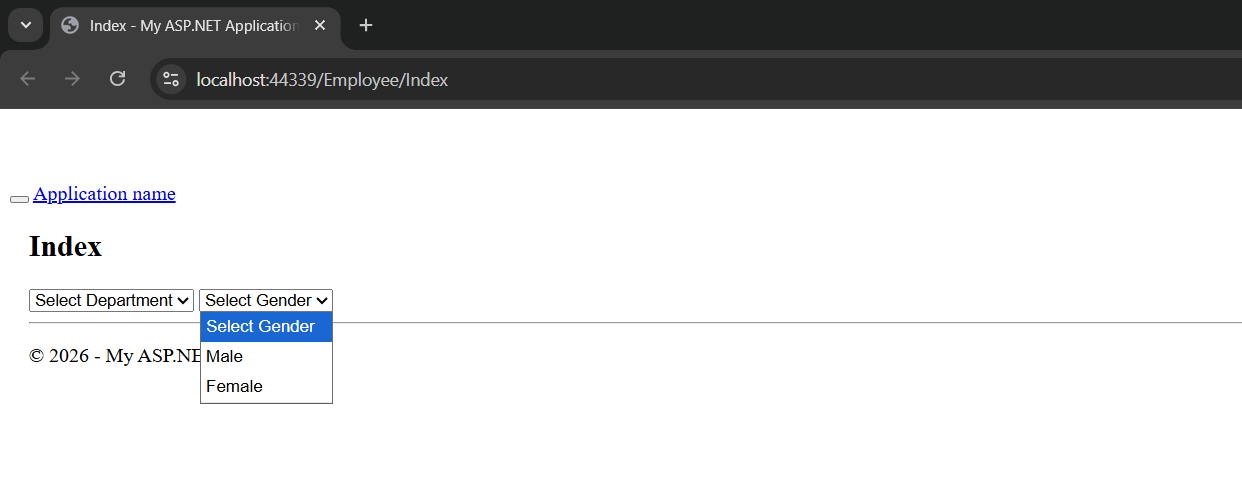
Output
Application URL
https://localhost:44376/Employee/Index
Third Example – Multiple Models
In this example, we will work with TWO model classes.
- Department.cs
- Employee.cs
we will start by creating a class inside the Models folder.
Go to the Models folder 📁.
Right-click on Models → Select Add → Class.
Name the class Department.cs and click Add.
using System;
using System.Collections.Generic;
using System.Linq;
using System.Web;

namespace Your_Project_Name.Models
{
    public class Department
    {
        public int Id { get; set; }

        public string Name { get; set; }
    }

    public enum Gender
    {
        Male,
        Female
    }
}
Now we will create the Employee Model.
Go to the Models folder 📁.
Right-click on Models → Select Add → Class.
Name the class Employee.cs and click Add.
using System;
using System.Collections.Generic;
using System.Linq;
using System.Web;

namespace Your_Project_Name.Models
{
    public class Employee
    {
        public int EmployeeId { get; set; }

        public string EmployeeName { get; set; }

        public string Gender { get; set; }

        public int DepartmentID { get; set; }
    }
}
Create Employee Controller
Go to the Controllers folder 📁, right-click on it, and select Add → Controller.
Choose MVC 5 Controller – Empty and click Add.
Name the controller Employee and click Add.
After creating the controller, open Employee.cs .
using System;
using System.Collections.Generic;
using System.Linq;
using System.Web;
using System.Web.Mvc;
using Your_Project_Name.Models;

namespace Your_Project_Name.Controllers
{
    public class EmployeeController : Controller
    {
        public ActionResult Index()
        {
            // Lets create list department for dropdownlist
            List<Department> ListDepartments = new List<Department>()
            {
                new Department() { Id = 1, Name="IT" },
                new Department() { Id = 2, Name="HR" },
                new Department() { Id = 3, Name="Payroll" },
            };
            ViewBag.Departments = ListDepartments;

            // Lets create one employee
            Employee emp = new Employee()
            {
                EmployeeId = 1,
                EmployeeName = "AIT",
                Gender = "Male",
                DepartmentID = 1
            };
            // Pass that employee to the view
            return View(emp);
        }
    }
}
Update Index View
@using Your_Project_Name.Models
@model Employee

@{
    ViewBag.Title = "Index";
}

<h2>Index</h2>

@Html.DropDownListFor( emp => emp.Gender, new SelectList( Enum.GetValues( typeof(Gender) ) ), "Select Gender",new { @class = "form-control" } )

@Html.DropDownList( "Department", new SelectList( ViewBag.Departments, "Id", "Name" ), "Select Department", new { @class = "form-control" } )
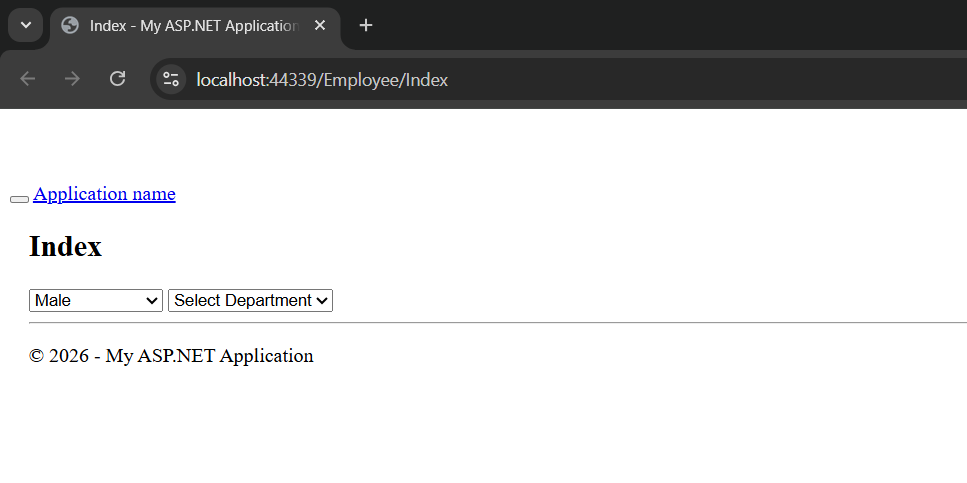
Output
Application URL
https://localhost:44376/Employee/Index